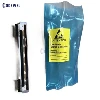
How to clean the print head

If you do not use the printer often, sometimes the print head will be clogged with dried ink. This may be a problem because a clogged print head will prevent your printer from operating properly.
One way you might notice a clogged print head is if you print a page, but not one or all colors (even if you know there is ink available). You may also notice that your ink is irregular instead of passing smoothly.
The good news is that the print head is usually easy to clean! You can use manual cleaning options and printer software-based options to clean the print head. Today we will take a look at how to clean the print head. Read on to learn more.
Printer software self-cleaning
If you find that the print head needs cleaning, one possible solution is to use the printer's self-cleaning software to clean it. This method can be completed without touching the print head itself, allowing the printer to directly deal with the problem. It is best to check your printer manual first to see if there is a self-cleaning option, and if so, how to access it, but if you can’t find the information, follow the steps below.
Print head self-cleaning for Windows
If you are using a Windows machine, follow the steps below to start the print head cleaning process.
Step 1: Open the control panel and click "Devices and Printers"
Step 2: Right-click the icon or name of the printer to be cleaned, and select "Properties" from the drop-down menu
Step 3: Click the "Hardware" tab. Note: If you don’t see this tab, look for the "Maintenance", "More Options" or "Tools" tab
Step 4: Click on the option that says "Clean Ink Cartridge," "Clean Head," "Clean Nozzle," or "Clean Ink Cartridge" (wording may vary, depending on the printer)
Print head self-cleaning for Mac
For those who have a Mac machine, the following general steps should apply.
Step 1: Go to System Preferences and click "Printers and Scanners"
Step 2: Click the printer you want to clean, and then click "Options and Supplies"
Step 3: Select the "Utilities" tab, and then click "Open Printer Utility"
Step 4: Click the "Clean", "Deep Cleaning", "Print Head Cleaning" or "Ink Cartridge Cleaning" option (wording may vary depending on the printer).
Manually clean the print head
If your printer does not support the self-cleaning option, or if you have run self-cleaning but are still experiencing print head clogging, it may be time to try to clean your printer head manually.
For this, you need some supplies:
Isopropanol
Distilled or bottled water
tissue
A lint-free cloth
plastic wrap
A shallow bowl or plate
Gloves
The most important element here is isopropyl alcohol, because it can dissolve the dry ink sticking to the print head and cause clogging.
Step 1: Turn off the printer and unplug the power plug from the wall for safety
Step 2: Turn on the device and gently remove the ink cartridge (or the problematic one). Before performing this operation, be sure to consult the printer manual to learn how to perform this operation safely. If the print head is separated from the ink cartridge, also remove the print head.
Step 3: Optional, but you may want to wrap the ink cartridges in plastic to prevent them from drying out
Step 4: Locate the print head. If the print head is integrated into the ink cartridge, you may need to clean the ink cartridge itself. For other printers, the print head and ink cartridge are separate.
Step 5: Before starting to use isopropyl alcohol, try to gently wipe the print head with a lint-free cloth. This may clear any ink clogging the print head. If the blockage does not seem to be removed from the cloth alone, do not try to wipe it hard, as this may damage the printer head. Instead, try to use liquid to clear the blockage
Step 5: Mix one part distilled or bottled water with one part isopropanol in a shallow bowl. Put the print head in this mixture. If the print head is part of an ink cartridge, please be careful to submerge only the part of the print head of that part. If the print head is a separate part, gently put it in the mixture to soak the part with clogs. Let the print head soak for a few minutes
Step 6: Gently wipe the print head on a paper towel to dry it. Make sure it is completely dry before proceeding to the next step
Step 7: After the print head is dry, put it back in the printer, turn on the printer and print a test page. If the blockage has been cleared, you should find that the ink can flow smoothly and correctly on the page