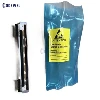
How to manually clean the HP printhead
Before we continue, you need to know that some HP inkjet printers have a built-in print head that is independent of the ink cartridge, and some HP inkjet printers have the print head built into a separate ink cartridge.
Clean the built-in print head of the printer
Manual cleaning of the print head built into the printer requires more work. The following steps are for HP printers with removable print heads, such as HP OfficeJet 8710. You can also use this method on non-HP printers that have a built-in printhead in the printer.
Supplies needed: a plastic container, a few dry paper towels, a lint-free cloth, and filtered or distilled hot water.
Fold dry paper towels into four equal parts and put them in a plastic container
Pour about two inches of hot water on the paper towel so that it is completely submerged
Turn on the printer and remove all ink cartridges from the machine
When continuing the print head cleaning process, place the ink cartridge on a separate paper towel. Make sure that the ink cartridge is placed face up on a paper towel.
Lift the gray latch on the back of the carriage that holds the ink cartridges. This will release the print head from the printer.
Pull the print head upward to remove it from the machine.
Soak the lint-free cloth with hot water.
Gently wipe the excess ink from the print head nozzles.
Put the print head into the container with the submerged paper towel. The nozzle should face down. Be careful not to touch the nozzle, as it can be easily damaged.
Let the print head soak for about ten minutes. Then take it out of the container and place it on a dry paper towel to dry for fifteen minutes. The nozzle should face upwards.
Reinstall the print head back into the printer. Don't forget to fix the latch! Then reinstall the ink cartridges and run the cleaning function on the machine again