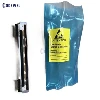
A bar code printer is just a professional printer that can be used to print barcodes. Because of the different printing consumables, including the installation of consumables and the corresponding required printing software and software settings, different users use them, which makes many users feel dizzy. In fact, the use of barcode printers is similar to that of ordinary printers. The printer driver is installed first, and then the printing supplies are installed, followed by the user's typesetting, and then the printed content is output to the printer.
1. Label paper installation
Open the printer cover to expose the roll support. Take out the paper roll holder, put the paper roll from left to right into the paper roll holder, and put the paper roll holder together with the paper roll back into the paper roll bin. Align the paper roll to the left end, and hold the baffle on the tray to the left against the paper roll. Open the print head module, hold the print head touch group with one hand to avoid falling, pass the label under the print head touch group, and pull the label from the label guide with the other hand, let the label pass through the roller. Close the print head and touch the group until you hear a "click". Close the top cover and turn on the power switch. If the printer power is on, press the FEED key directly.
2. Ribbon installation
Open the printer cover to expose the roll support compartment, press the release buttons on both sides of the printer to open the print head touch group, open the print head touch group to expose the ribbon supply end, unpack the ribbon, take out the ribbon and empty rolls Core, a small amount of the front end of the barcode ribbon is connected to the empty core. Install the carbon ribbon on the carbon ribbon supply end (first clamp the left end and press it into the right end), close the print head and touch the empty core at the carbon ribbon recovery end (first clamp the left end and press it into the right end). Turn the gear on the left side of the print head touch group to make sure that the ribbon is tight, and press down on both sides of the print head touch group until you hear a "click".
3. Connect the printer
Connect the power cable, USB printing cable, turn on the power switch, and insert the CD-ROM to install the driver.
4. Driver installation
Put the disc in the CD-ROM drive, click the auto play and the following icon will appear, click “GO”, select the driver download in the barcode printer product, when the “Found New Hardware” prompt appears, select “Accept” and click “Next” . Specify the installation directory of the SEAGULL driver and click to finish. Choose to install the printer driver, then select the machine "POSTEK C168 / 200s" (depending on the printer model of different brands, POSTEK is used as an example in this article), select the printer's connection port, enter the printer name next, and choose not to share the printer Next step. Check that all data is correct and complete.
The above is the installation method of barcode printer introduced by Xiaobian for everyone. In our life, there are various printers, but according to different needs of people, the printers used are different. The invention of the printer brought great convenience to people.